.webp)
Support Guide
How to Find the Admin Password on an HP T1600 / T2600 DesignJet MFP
This guide walks you through locating the default administrator password on an HP T1600 or T2600 DesignJet MFP directly from the printer's touchscreen. No tools or software needed.
1
Turn the machine on
Power on the printer and wait for the touchscreen to fully load.
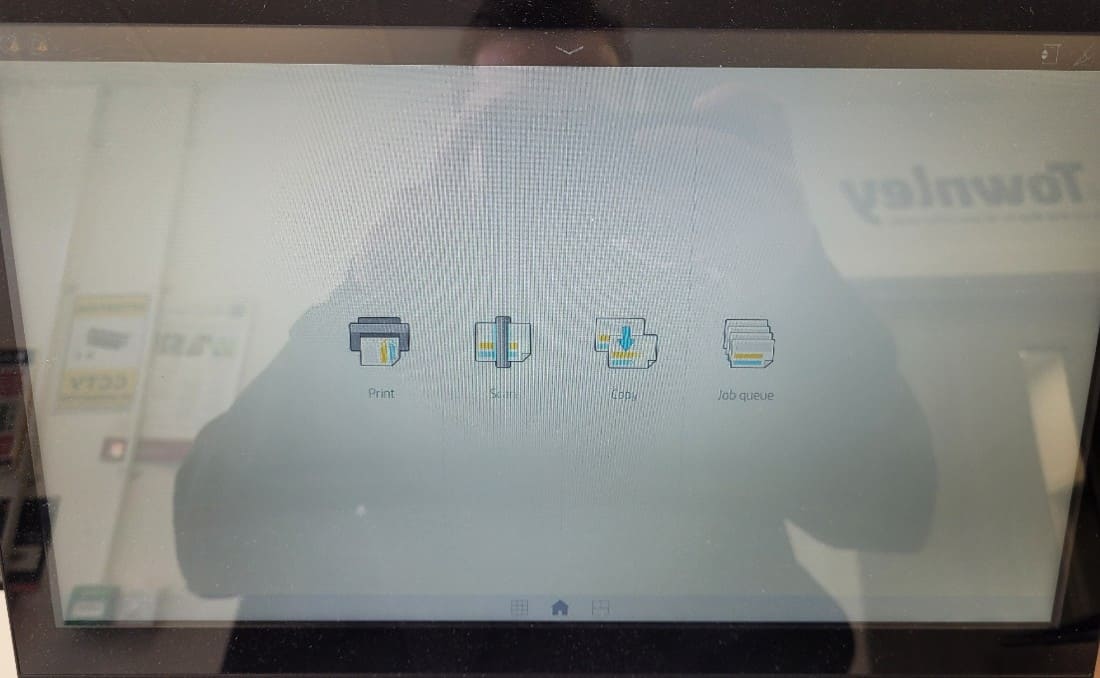
The printer home screen once fully booted.
2
Swipe left to the main menu
From the home screen shown below, swipe left to reach the main menu.
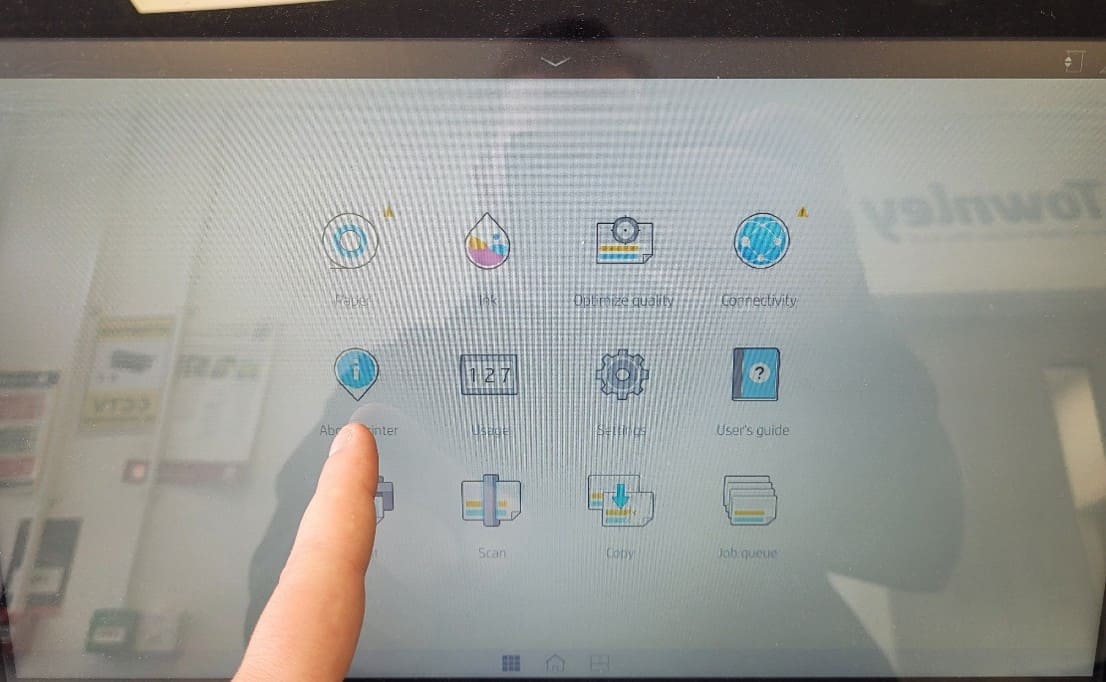
Swipe left from this screen to open the main menu.
3
Select the About Printer icon
In the main menu, locate and tap the About Printer icon.
The About Printer icon in the main menu.
4
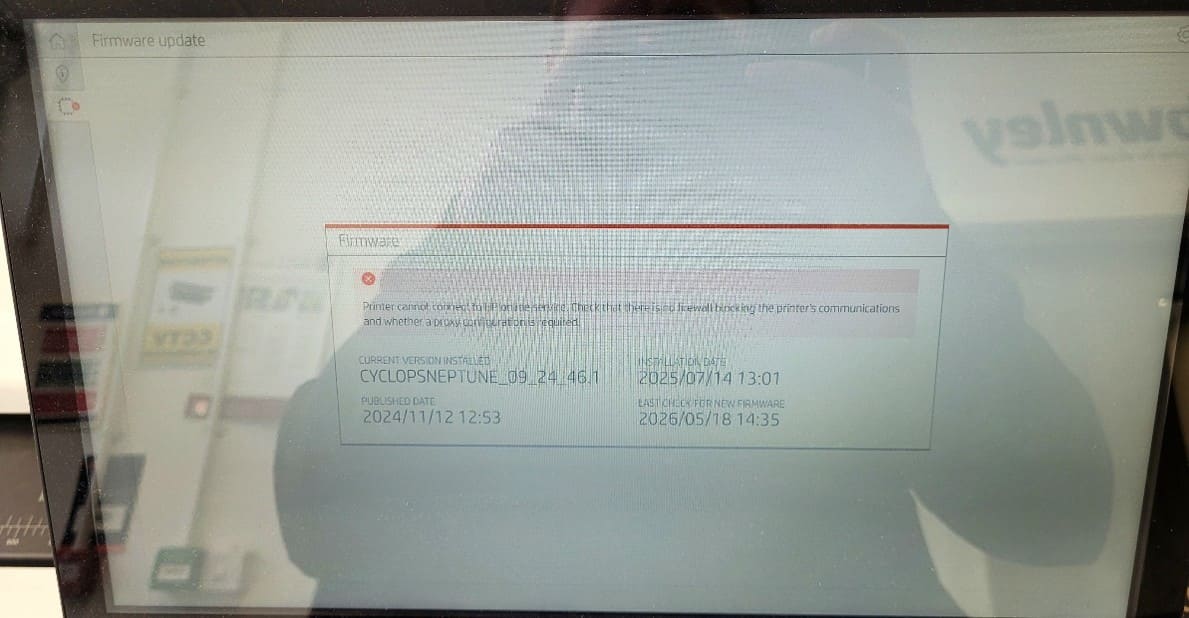
Open the About Printer section
Select the second icon down on the left-hand side to enter the About Printer section.
The second icon on the left opens the About Printer section.
5
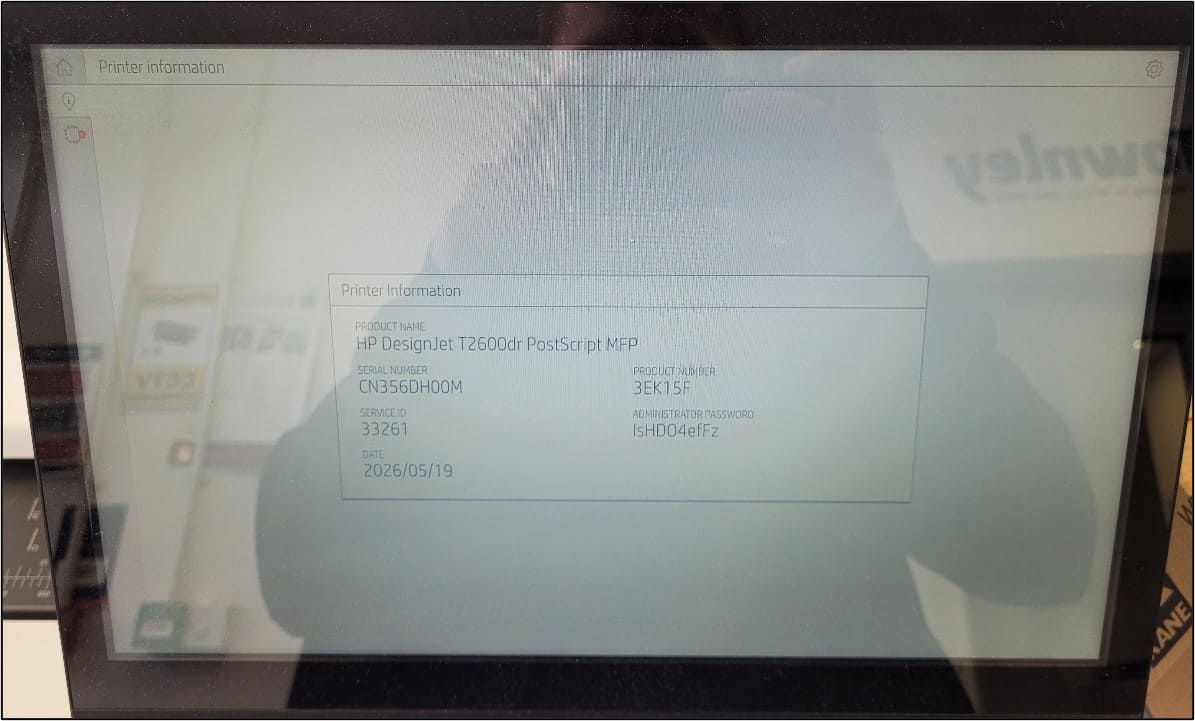
Find your serial number and admin password
Your printer's serial number and the default administrator password are both listed on this screen.
If the default password does not appear, or the screen shows "modified by administrator", the password has been changed and cannot be retrieved this way. A chargeable callout will be required to reset it. If the password was set by a Perfect Colours engineer, it is usually admin.
Step-by-step video walkthrough for the T1600 admin password process.
Still having trouble? Our support team is here to help.
020 7064 9663.png)



 (1).jpg)

 (1).png)


